Set up Audiee.ai in five minutes
Five minutes from download to your first transcribed meeting. Audiee.ai runs on macOS 13 or later, Apple silicon or Intel, and asks for three permissions on first run (the third is optional).
1 · Install
Download the DMG, drag Audiee to Applications and open it. Sign in with Google or GitHub in your browser — the app picks it up. Free, no card.
2 · Grant three permissions
The first-run screen asks for three things: Microphone (transcribe your voice), Screen & System Audio Recording (transcribe the others on the call — macOS files call audio under Screen Recording; Audiee.ai keeps no video) and Accessibility (see who's speaking — optional). Each is one click in System Settings → Privacy & Security, where every entry is called Audiee. Dictation hotkeys and browser meeting detection ask later, from Settings → Privacy & permissions. Every permission, explained.
3 · Take your first meeting
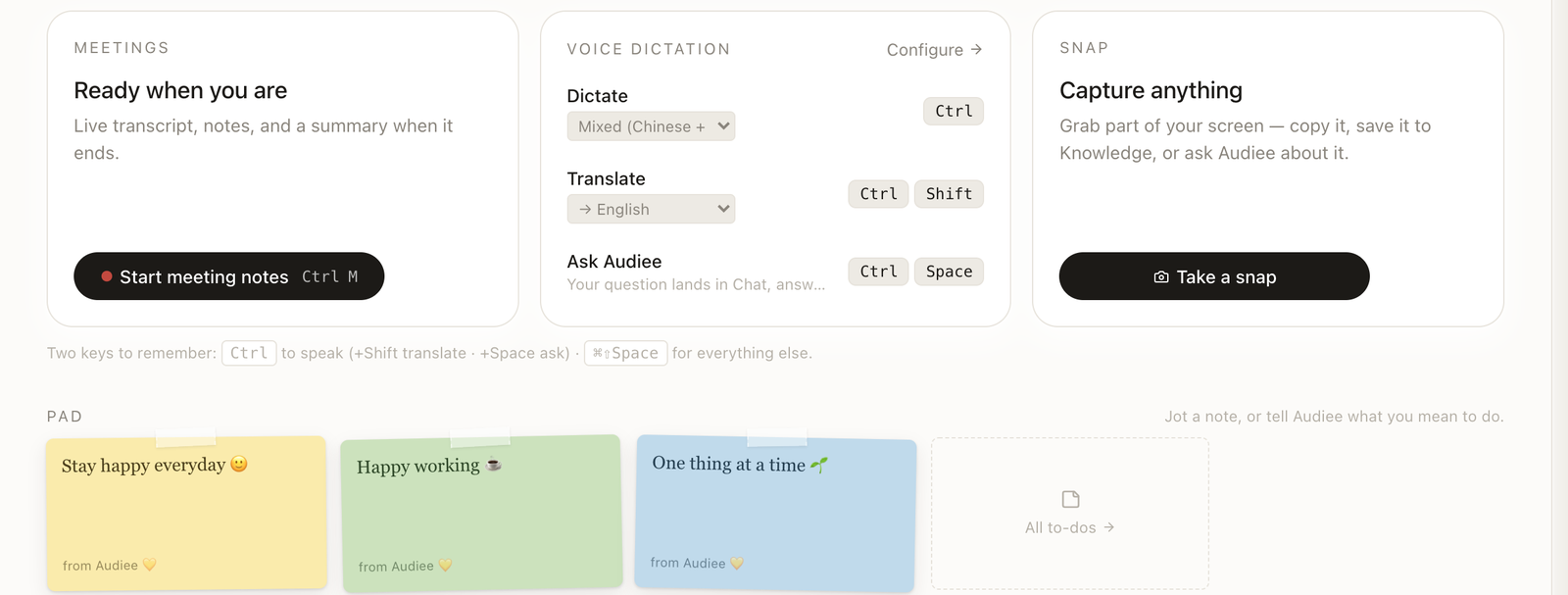
Join any Zoom, Google Meet, Teams or Lark call. Audiee.ai notices and offers to take notes — or press Ctrl+M to start by hand. You get a live transcript on the side, then a summary with action items, what you're waiting on, and follow-ups.
4 · Ask it something
Open Chat and ask "what did we decide about pricing?" The answer cites the meeting it came from. Try the same question mid-meeting next time — Audiee.ai answers from your record while the call is on.
5 · Write with your voice
Put the cursor in any text box, tap Ctrl and talk; tap again to finish. Ctrl+Shift translates as you speak; Ctrl+Space asks Audiee.ai a question by voice.
6 · Share a recap
Open the meeting, click Share, type an email. They get a read-only page by email — no account needed.
What if something's off?
- No transcript appears — check that Screen & System Audio Recording is switched on for Audiee.ai and restart the app once.
- Only your side is transcribed — the meeting app is using a different audio output; pick your normal speakers or headphones in the call and Audiee.ai follows.
- Names aren't showing on Zoom lines — grant Accessibility, then Settings → Meetings → Check speaker detection tells you what it sees.
- Wrong language — Settings → Dictation sets the spoken language; Mixed handles English and Chinese together.