A Zoom AI notetaker that never joins the call
Audiee.ai takes notes on Zoom calls automatically on a Mac: it notices when Zoom is in a call, offers to start, transcribes both sides from your Mac's audio, and writes a summary with action items when the call ends. No bot joins the meeting. The audio is streamed to a speech provider for transcription and the transcript text to a language model for the summary; no copy of either is kept on our servers.
How does Audiee.ai detect a Zoom call?
Audiee.ai notices when a Zoom call starts (and Google Meet, Microsoft Teams and Lark), and a small card asks whether to take notes. There is no switch to turn this detection off yet: dismiss the card and Audiee.ai stays quiet for that app for the next half hour, and you can always start by hand with Ctrl+M instead.
How does it hear both sides without a bot?
Zoom's audio plays through your Mac; Audiee.ai captures that output plus your microphone. That's why it needs the Screen & System Audio Recording permission — and why nobody on the call sees an extra participant.
How does it know who said what?
With the Accessibility permission, Audiee.ai reads Zoom's active-speaker indicator and tags transcript lines with names. Settings → Meetings → Check speaker detection shows what it can see if names are missing.
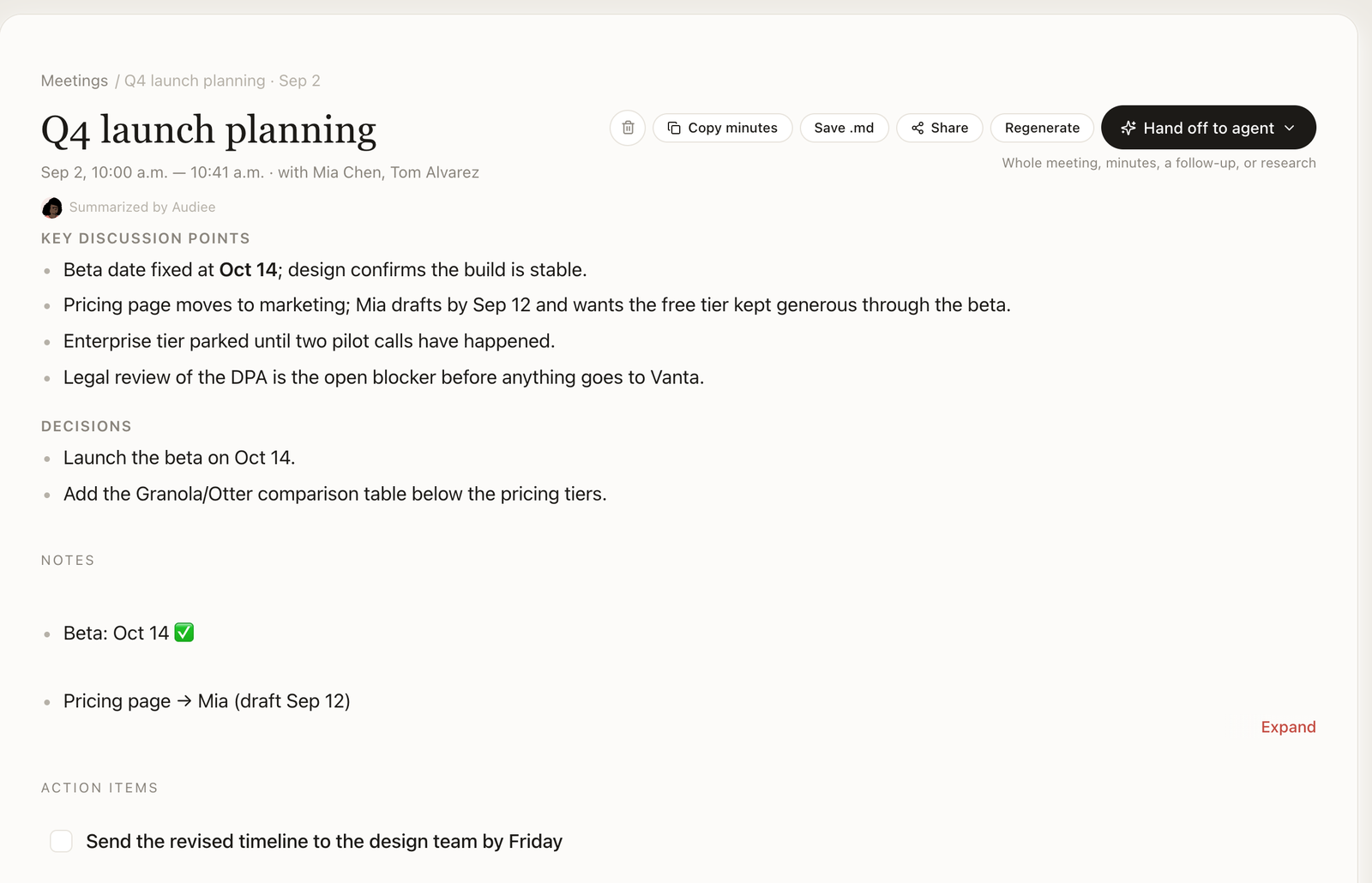
What do you get after the call?
- Summary, your action items, what you're waiting on, follow-ups.
- Commitments you made during the call, already lined up as one-click actions.
- A page in Knowledge linked to the people and projects mentioned; ask about it any time.
- Share the recap by email to people on the call — they don't need Audiee.ai.
How is this different from Zoom's own AI Companion?
Zoom's AI Companion works inside Zoom for the host's account and keeps notes in Zoom. Audiee.ai works for every call you're in — host or not, Zoom or not — and keeps the notes on your Mac, in English, Mandarin and Cantonese, as part of a memory that spans all your meetings.